Wi-Fi · LAN · Speed · Ports · Diagnostics
See what’s really happening on your network
Analyze Wi-Fi signals and channels, discover the devices on your LAN, test your connection speed, scan ports, and run the diagnostics that say where a problem actually is. Point it at a network you have never seen before and know what is there in about a minute.
- Native Android
- No root
- No guesswork
- 5
- tools in one app
- 7.0+
- Android supported
- 10
- languages
What it does
Five tools, each built around one question
Not five utilities bundled together for the app-store screenshot. Each one exists because of a question that is genuinely hard to answer from a phone.
Wi-Fi analyzer
See which channel is actually free
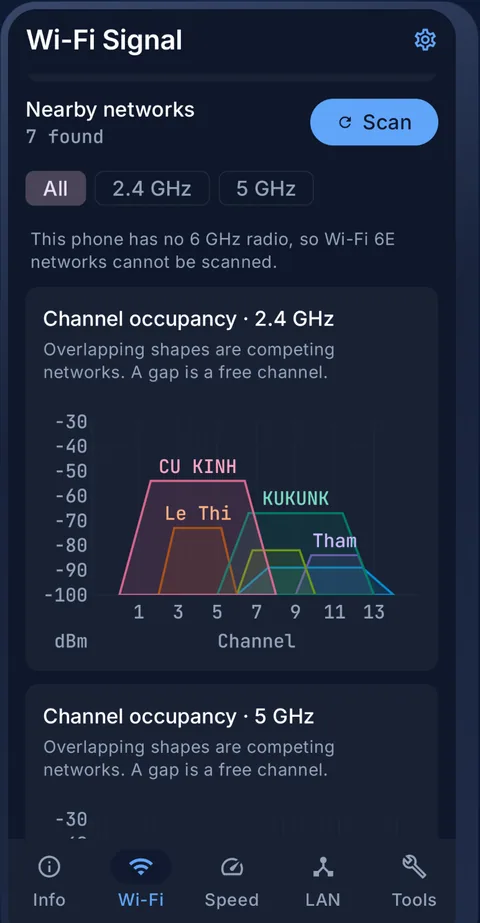
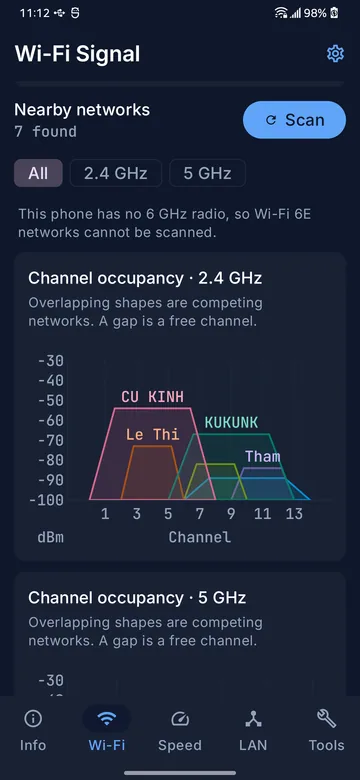
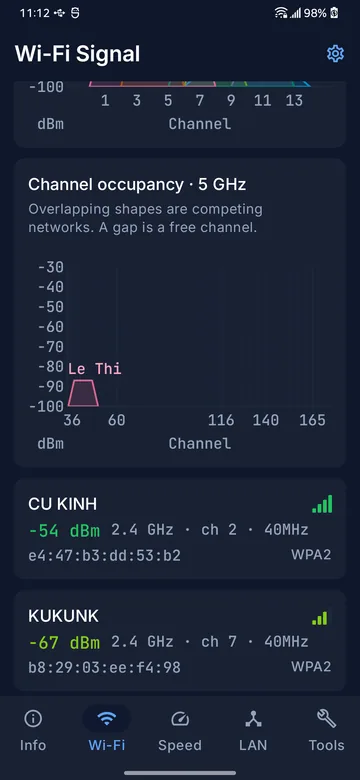
Channel occupancy is drawn as overlapping shapes on 2.4 and 5 GHz. Height is signal strength, width is the channel width the access point claims. Where two shapes overlap, those networks are contending for the same air. Where there is a gap, there is somewhere to move.
- Every channel in the band is on the axis, not only the occupied ones — a gap is the answer you came for, and an axis drawn from the scan cannot show one.
- The dBm axis is fixed at −100 to −30, so a network that did not move does not appear to move between scans.
- Each network gets its own colour. Colour is identity here, never a verdict — two access points fighting over one channel are exactly the pair that must not look alike.
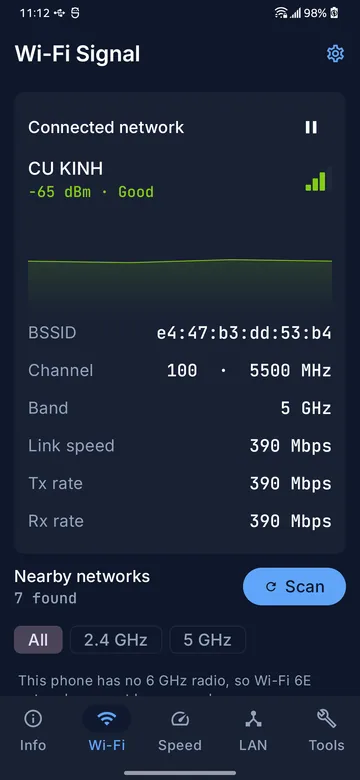
Worth knowing. Android throttles nearby-network scans to four every two minutes from Android 9 onward, and an app cannot opt out. So scanning is a button with a visible countdown, not a live feed. The signal of the network you are connected to is a different path and does update continuously.
LAN scan
See every device on a subnet you have never seen
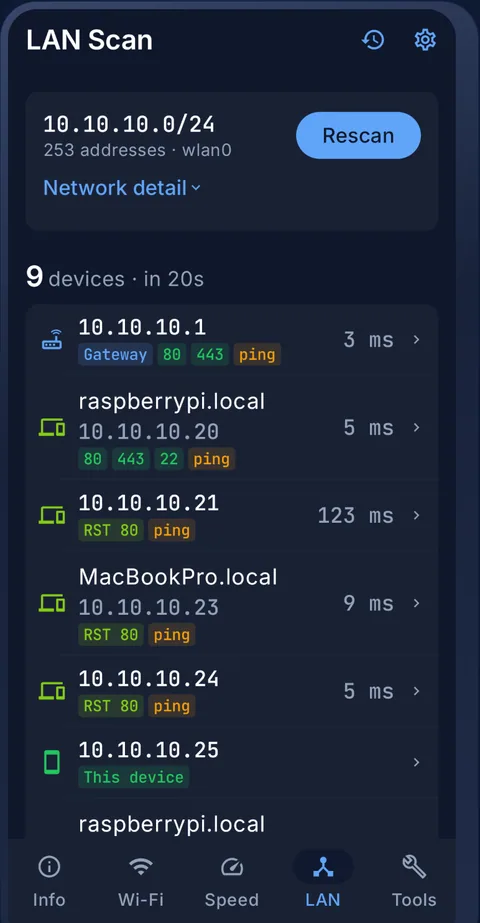
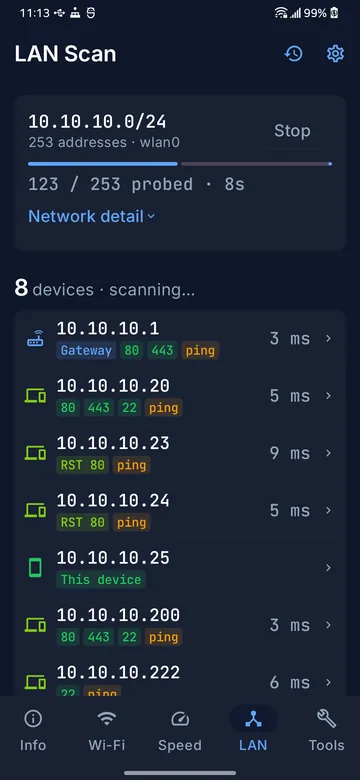
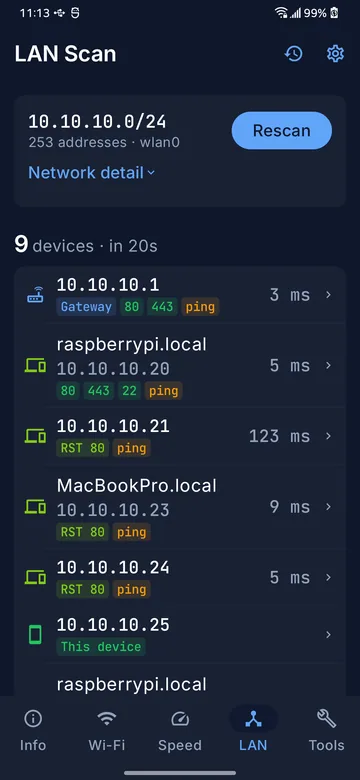
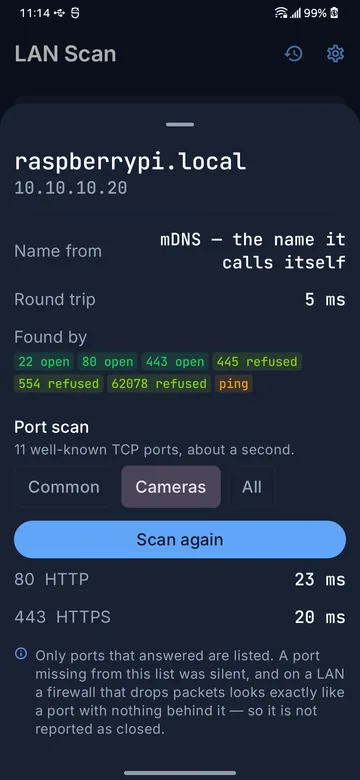
The subnet and prefix come from the interface itself, not from guessing at the IP. Every host that answers is listed with how it answered — an ICMP reply, an open port, a name it published over mDNS — so you can tell a camera from a printer from a laptop before you tap anything.
- A short set of well-known ports, RTSP 554 among them, is probed during the sweep itself — so a device that ignores ping still shows up, and a camera usually identifies itself as one on the first pass.
- Names come from mDNS where a device publishes one: the name it calls itself, shown as such.
- Runs in a foreground service with a bounded concurrency window, so a long sweep finishes instead of being killed or exhausting file descriptors.
Port scanner
Check what a device has open
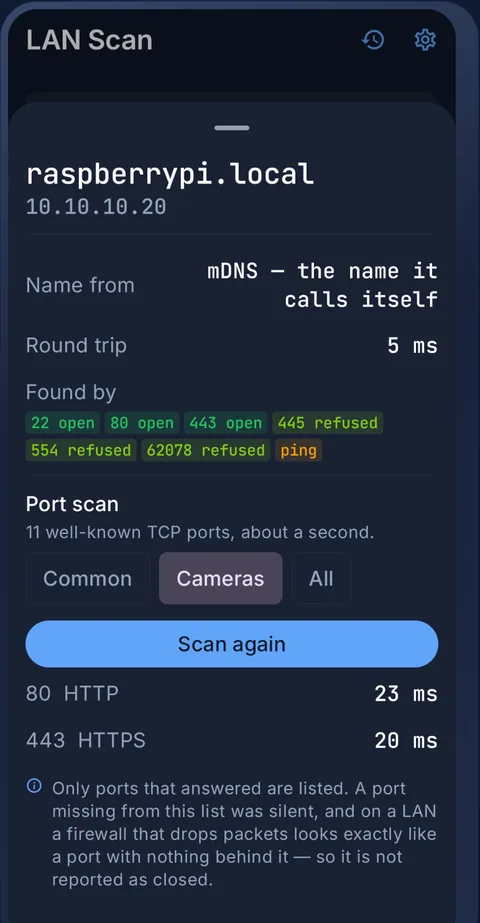
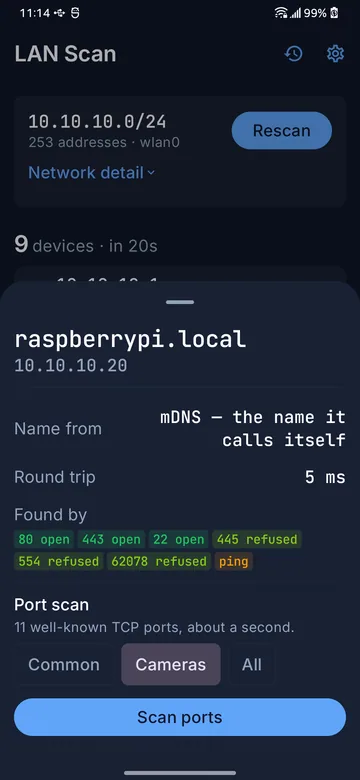
Three profiles — Common, Cameras, All. The camera profile is the set of ports the major vendors ship with, so one tap covers RTSP, the vendor service ports and the ONVIF web port.
- Only ports that answered are listed. On a LAN a firewall that drops packets looks exactly like a port with nothing behind it, so nothing is reported as "closed" — that would be a claim the scan cannot support.
- A per-host scan is merged back into the saved site record, so the ports you checked are still there in the export.
Worth knowing. A port number is a default, never a fingerprint. Any device can listen on 37777, and anyone who moved the service off its default port will not show up under it. The app labels the port, not the brand.
Speed test
A number the link actually sustained
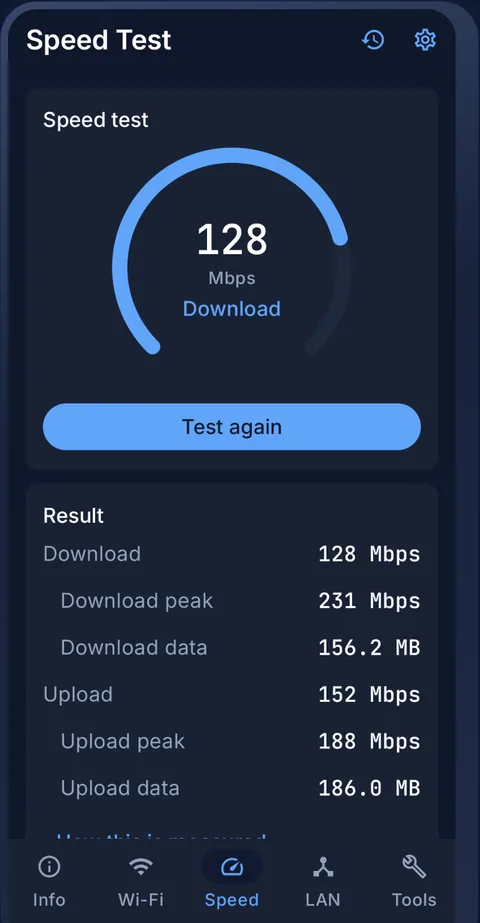
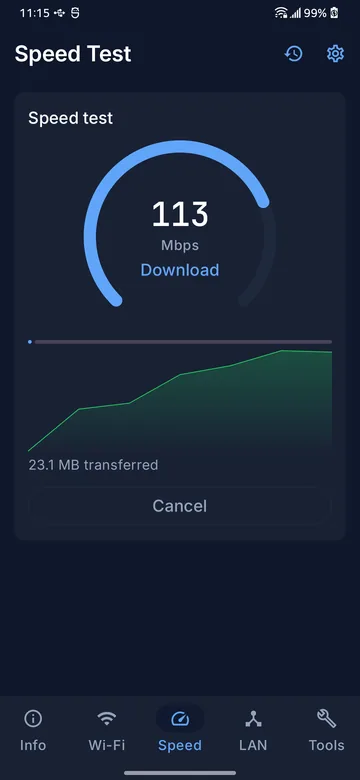
Runs against Cloudflare’s anycast endpoints — no account, no key, and no fixed file that an ISP cache could answer on the internet’s behalf. A cached response measures the distance to that cache, not to the internet.
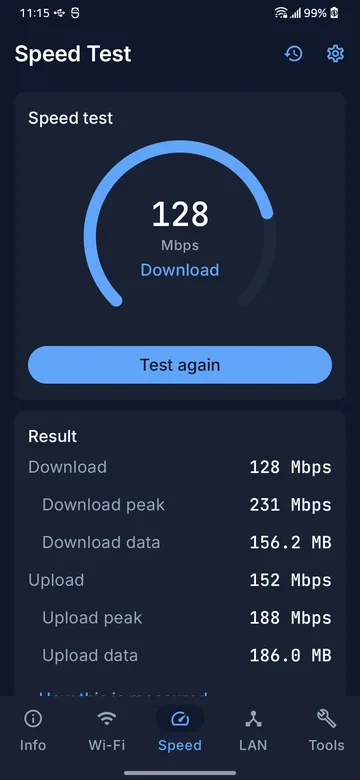
- The headline figure is total bytes over total time, not a high percentile of the sampling windows. Most window-to-window variation is the same bytes landing on one side or the other of a boundary; a percentile of that noise reports a rate the connection never held.
- The first two seconds of each direction are discarded, because TCP is still ramping up and that part is not the link speed.
- Bytes are counted at the app’s own streams, not from a system-wide counter that would include every other app on the phone.
Worth knowing. Stream-level measurement excludes TCP/IP header overhead, roughly 3–5%. Zero bytes transferred is reported as a failure, never as "0.0 Mbps" — a rejected request is not a diagnosis of your connection. A full run moves hundreds of megabytes, so the app warns first on a metered network.
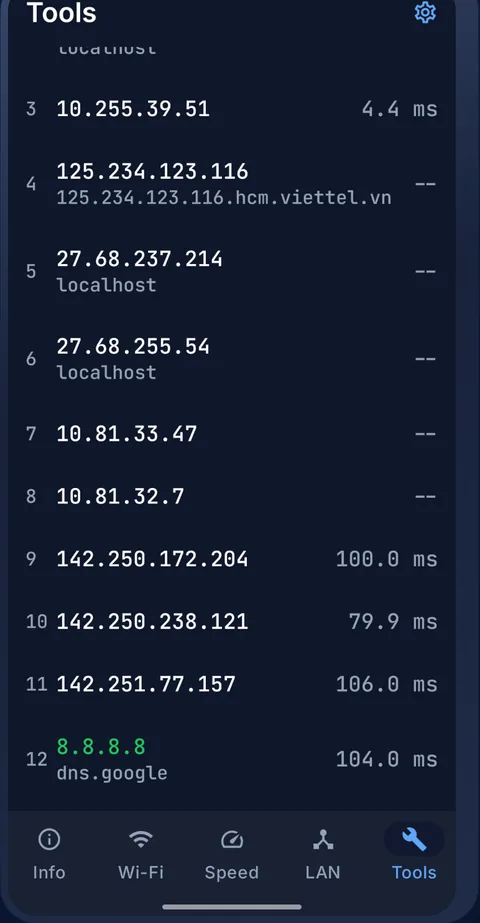
Ping · Traceroute · DNS · WHOIS
The path, hop by hop, with timings that mean something
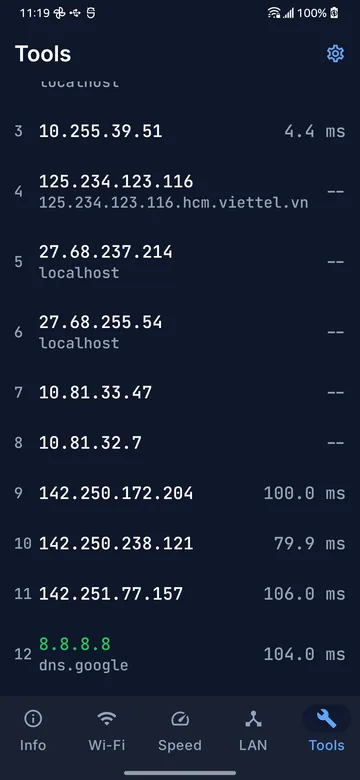
An unprivileged Android app cannot open a raw socket, so traceroute is built out of ping with a TTL. Each hop is found by the TTL probe and then timed by a second, ordinary ping addressed to the router itself — measured by ping’s own clock rather than by the app’s stopwatch around a process launch.
- That stopwatch is worth about 13 ms of fork and exec on a mid-range phone. A gateway 2 ms away would read as 30 ms. The second probe is why the app agrees with a desktop traceroute to a tenth of a millisecond.
- A router that forwards traffic but refuses echo addressed to itself gets no time at all, and the screen says why. "No reply" and "answered the probe, refused the echo" are different states and stay visually distinct.
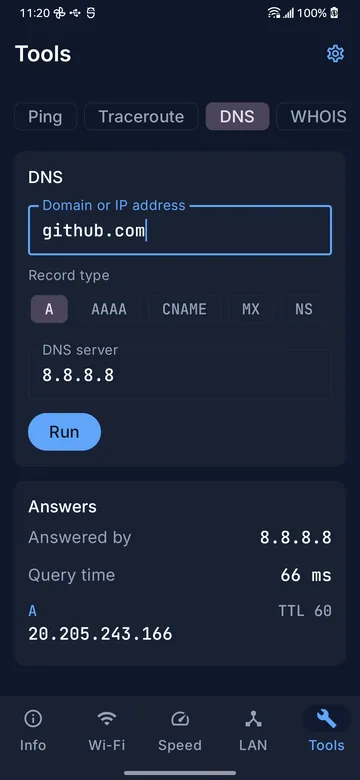
- DNS is a hand-rolled UDP query, so you can ask this router’s resolver and compare its answer with 8.8.8.8 — which is the question worth asking when a name resolves on one network and not another. NXDOMAIN and "exists, but has no record of that type" are reported as the different findings they are.
- WHOIS follows the referral chain from IANA and keeps the fullest answer, because a registrar at the end of the chain often returns less than the registry did.
Camera profile
The ports the camera profile checks
Cameras are the devices people most often have to find on a network they did not build, so the port scanner ships with their defaults as a profile. Defaults, not fingerprints — any device can listen on any of them, and one that was moved off its default will not appear under it.
| Port | Commonly shipped by | What it is |
|---|---|---|
| 554 | Effectively every vendor | RTSP — the video stream itself |
| 80 / 443 | Every vendor | Web UI, and often the ONVIF endpoint |
| 8000 | Hikvision, EZVIZ | Vendor service / SDK port |
| 37777 | Dahua, Imou, Amcrest | Vendor service / SDK port |
| 34567 | Xiongmai and its OEM lines | Vendor service port |
| 2020 | TP-Link Tapo and others | ONVIF service port |
| 88 | Foscam | Web UI / service port |
| 3702 | ONVIF conformant devices | WS-Discovery, UDP multicast |
The app labels the port, never the brand. The one exception is an ONVIF reply, where the camera states its own manufacturer and model — and that is quoted as fact because the device said it.
Also in the app
The rest of what ships
ONVIF discovery
WS-Discovery on 3702. This is the one place the app reports a brand as fact rather than inference — the camera sends its own manufacturer, model and location in the reply.
Network info
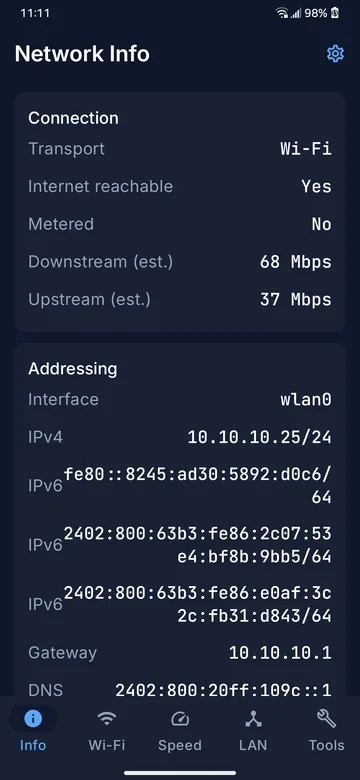
Interface, IPv4 and IPv6, gateway, DNS servers, MTU, and cellular detail where the SIM and the permission allow it. Read from NetworkCapabilities and LinkProperties, not from deprecated APIs that return stale answers.
CSV and JSON export
A site survey leaves the phone as a file you share yourself. Headers are always English so exports from different phones concatenate, and CSV ships a UTF-8 BOM so Vietnamese site names open correctly in Excel.
Widget and Quick Settings tile
Current signal on the home screen, stamped with the moment it was taken — because a widget cannot legally refresh more often than every 30 minutes and a stale reading with no timestamp is a lie.
Scan history
Completed runs only. A cancelled or failed run is never written, because a partial number in a history list is indistinguishable from a real measurement.
Ten languages
English, Vietnamese, Indonesian, Malay, Thai, Filipino, Hindi, Korean, and Chinese in both scripts. Technical tokens stay in English, because that is how they appear on the device’s own web UI.
Screens
Every screen, unretouched
Honest limits
What it will not do, and why
Android blocks some of what a network tool would like to do. Where that happens the app says so on the screen rather than filling the gap with something plausible.
MAC addresses and vendor lookup are best-effort
/proc/net/arp stopped being readable at Android 10, and there is no unrooted API that returns another host’s MAC on the LAN. Where a MAC leaks through mDNS or UPnP metadata the app looks up the vendor; where it does not, the field is absent. It is never filled in with a guess.
Nearby Wi-Fi scanning is rate-limited by Android
Four scans per two minutes from Android 9 on, with no opt-out outside Developer Options. Any app promising a continuously refreshing list of nearby access points is either showing you a cached one or is not doing what it says.
A silent probe is not an empty network
On the test bench an EZVIZ camera answered RTSP on 554 and its vendor port on 8000 and said nothing at all on 3702 — consumer lines commonly ship with ONVIF switched off. A missing ONVIF reply is worded as a missing reply, never as "no camera found".
FAQ
Questions worth answering
Does it need root?
No. Everything works on a stock, unrooted phone. Where that costs accuracy — traceroute timings, MAC lookup — the app says so on the screen rather than filling the gap with a plausible number.
Why does it ask for location permission?
On Android 12 and below the system will not return an SSID, a BSSID or a scan result to an app without ACCESS_FINE_LOCATION and Location Services switched on — that is Android’s rule, not a choice this app made. On Android 13 and above the app requests NEARBY_WIFI_DEVICES instead, flagged neverForLocation, and does not ask for location at all. It never requests background location.
Which Android versions are supported?
Android 7.0 (API 24) and newer. The permission paths genuinely diverge across that range, so both the pre-13 and post-13 behaviour are tested on real hardware.
Can it tell me the brand of a camera it found?
Only when the camera says so itself. An ONVIF reply carries the manufacturer and model, and that is quoted as fact. A brand inferred from an open port would be a fabricated identification, and someone is going to act on what the screen says, so the app does not print one.
How accurate is the speed test?
It measures the bytes your phone actually moved over Cloudflare’s network, divided by the time it took, excluding roughly 3–5% of TCP/IP header overhead that never reaches the application. Cloudflare rate-limits per source IP, so a VPN or a CGNAT connection shares its quota with everyone else behind that address and can hit the limit early. When that happens the app names it as a rate limit rather than reporting it as a slow connection.
Do my scans leave the phone?
Scan results, host lists and saved site surveys are stored on the device and are only shared if you export them and send the file yourself. The app does contain advertising and uses Google services to deliver it — the privacy policy sets out exactly which.
From the blog
Field notes
Why two speed tests on the same link disagree
Header overhead, TCP slow start, percentile arithmetic and per-IP rate limits: four reasons two honest tools disagree, and which one to believe.
Choosing a Wi-Fi channel that actually helps
How to read a channel occupancy chart, why 1-6-11 is still the answer on 2.4 GHz, and why every Android Wi-Fi analyser makes you press a button.
IP camera default ports, and why a port is not a brand
The ports each camera vendor ships with, what each one is actually for, and why a scanner should never print a brand name beside a port number.